
Quick Answer |
The most common reasons why your WiFi keeps disconnecting within a few minutes are: (1) The router is overheating or is not in a good location, (2) your device is using older network drivers, (3) The people around you are interfering with your Wi-Fi network (4) you are using too many devices on your network, or (5) It is your ISP that is causing the problem. Begin by re-booting your router, updating the drivers and changing to a less congested WiFi channel. |
Why Does my WiFi Keeps Disconnecting?
There is nothing more counterproductive than a WiFi connection that drops and that has to be reconnected every few minutes. You are in the middle of a video call, watching your favorite show, or even doing an important work assignment and then, out of nowhere, you lose connection. Again.
I have experienced it, and having spent dozens of hours trying to troubleshoot my own WiFi problems in three different houses as well as spend time with dozens of my friends and family members to fix theirs, I have learned that WiFi disconnection issues can generally be subdivided into a few main categories.

The good news? The majority of WiFi failure connections can be resolved without the assistance of a technician or having to purchase new equipment. This guide will show you a step-by-step process of troubleshooting and troubleshooting your bad WiFi connection – be it the WiFi disconnection every few minutes, completely on its own, only on certain activities, etc.
Why Your WiFi Keeps Disconnecting.
It is good to learn first what is really going on when your WiFi keeps disconnecting before fixing it. Not every one understands that WiFi disconnection problems can be categorized into three unique groups, and that each one must be approached with a different method of troubleshooting.
The Three WiFi Disconnection Problems.
1. Intermittent disconnection (after every few minutes)
When your Wifi keeps disconnecting every 5-10 minutes, that is normally an indicator of a configuration error. The most frequent offenders are as follows: the lease time of the DHCP is abnormally short, your wireless adapter is being put to sleep using power management options, or the router software has bugs that will periodically reset. This trend is in fact beneficial since it provides a clearer path to troubleshooting.
2. Random Intermittent Disconnections
Random disconnection which occurs without warning is environmental. The interference by the WiFi of the nearby networks, microwave ovens, baby monitors, or even Bluetooth devices may result in occasional dropouts. Physical obstructions and distance to your router also have to be recognized under this. Such problems are likely to increase during peak times when additional devices are sharing the airtime.
3. Activity-Specific Disconnections
Do you find your Wifi keeps disconnecting when you are on a video or gaming and when downloading large files? This trend is normally a sign of congestion of bandwidth or Quality of Service (QoS) misconfigurations. When your network is being overwhelmed, it may be blocking connections or it may just be certain applications causing the issue due to incompatible settings.
Fast Solutions that Will Work (You Should Try These First).
We will begin with the fixes that can be done in less than 5 minutes but this fix most of the disconnection problems with WiFi. I have arranged them in terms of their probability to help according to my experience.
Fix 1: The Proper Router Restart (Not Unplugging).
The majority restart their router incorrectly. The following is the trick that really works:
i. Disconnect the power cable of your router at the back (not the wall socket)
ii. Wait 60 seconds – this is enough to allow the capacitors to discharge.
iii. Re-insert power and allow 2-3 minutes of complete booting of the router.
iv. Run a connection test (at least 10 minutes) and check whether the disconnections cease.
Explanation of why this works: Router memory may be corrupted with time, resulting in erratic connections. This memory is cleared with a proper power cycle restoring clean connections between all your devices again. This basic solution fixes approximately 30 percent of problems with WiFi disconnection.
Fix 2: Update Network Adapter Drivers.
Surprisingly, old drivers or damaged network drivers are also the reasons of Wifi keeps disconnecting. Windows update does not always identify these and therefore it is worth checking manually.
For Windows:
- Click windows + X and choose device manager.
- Click on Network adapters and identify your WiFi adapter.
- Right-Click and choose update driver.
- Select Search automatically for drivers.
- In case windows informs you that your driver is up to date, go to the website of your laptop/motherboard manufacturer and download the latest driver directly.
For Mac:
1. Click on Apple menu and choose “About this Mac”.
2. Click the software update and install any updates.
3. MacOS updates include mac drivers and it is important to keep your system up to date.
Pro Tip
I had once wasted two hours trying to troubleshoot a WiFi problem and found out that the driver was half a year old. After updating, the disconnections stopped completely. It is a good idea to always check drivers first in the troubleshooting process, and this will save you a lot of time.
Fix 3: Change Your WiFi Channel.
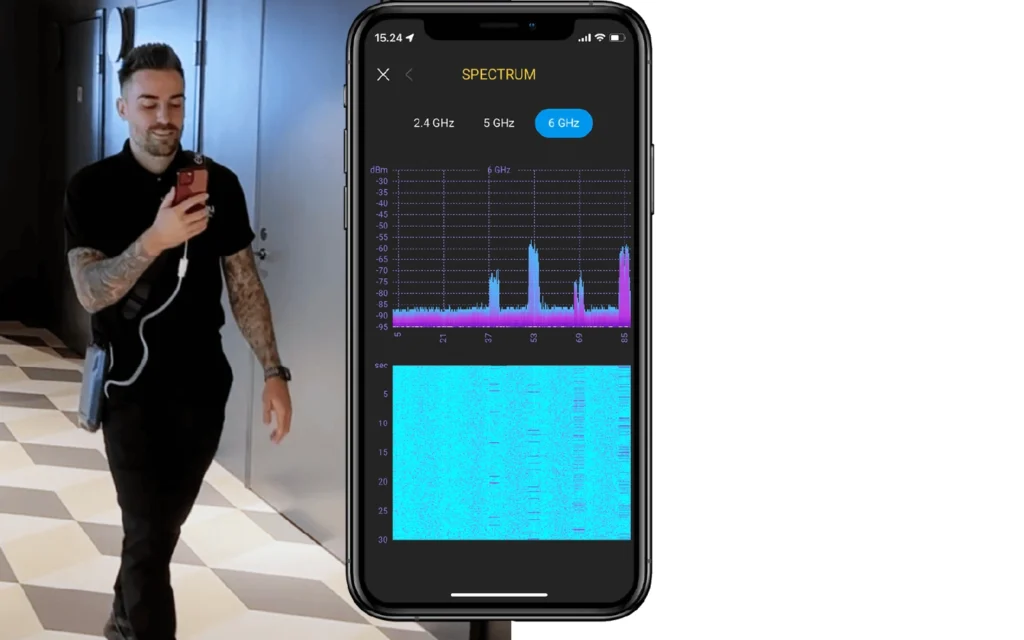
WiFi connections are similar to lanes on a highway – traffic congestions occur when there are a lot of routers sharing the same channel. Channel congestion is one of the biggest reasons of WiFi disconnections in apartment buildings and in dense neighborhoods.
In the case of 2.4 GHz networks, use channels 1, 6 or 11 – only these channels do not overlap. With 5 GHz, the possibilities are larger, and in most cases, channels 36, 40, 44, 48 should not be involved in congestion.
To switch channels enter the admin panel (normally at 192.168.1.1 or 192.168.0.1) of your router, navigate to the WiFi options and then change the channel manually. Find out what channels your neighbors are using with a WiFi analyzer app on your phone and choose the least busy one.
Expert solutions to chronic WiFi dropouts.
If the quick fixes did not solve your problem then you have to go deeper. These solutions contain more complex problems that make WiFi keeps disconnecting.
Fix 4: Turn off Power Management of Your WiFi Adapter.
Windows has a bad habit of turning your WiFi adapter off to save power resulting in disconnections. The following is the way to prevent it:
- Open Device Manager (Windows + X, then select Device Manager)
- Click in the Network adapters and right-click on your WiFi adapter.
- Click on the Properties and select the Power Management tab.
- UNCHECK: to enable the computer to shut this device off to save power.
- Click OK and restart your computer.
This single setting has resolved limitless disconnection problems to me and others I have assisted. Windows is too power saving and it tends to turn the power off to WiFi device at a time when it is most required.
Fix 5: Tune Your Router DHCP Lease Time.
DHCP lease time defines the time your router will keep the memory of your device. By the end of the lease period, your device should request a new IP address which may result in short disconnections. When the lease time is too short (say 10 minutes), you will get frequent drop outs.
To fix this, access your router’s admin panel and look for DHCP settings. Increase the lease time to at least 24 hours (1440 minutes). Other routers allow you to set it to unlimited – that is also okay. This change has been the only solution when many people were experiencing disconnects every few minutes.
Fix 6: Router Placement Optimization
The position of routers is more important than some people may think. Having assisted friends to troubleshoot their networks, I have encountered routers placed in closets, behind TVs, and on the floor in corners. All these places kill WiFi performance.
To get the best signal stability:
i. Install your router in a central place in the house.
ii. Raise it – at least 4-5 feet up the ground.
iii. Keep it away from metal objects, mirrors, and appliances
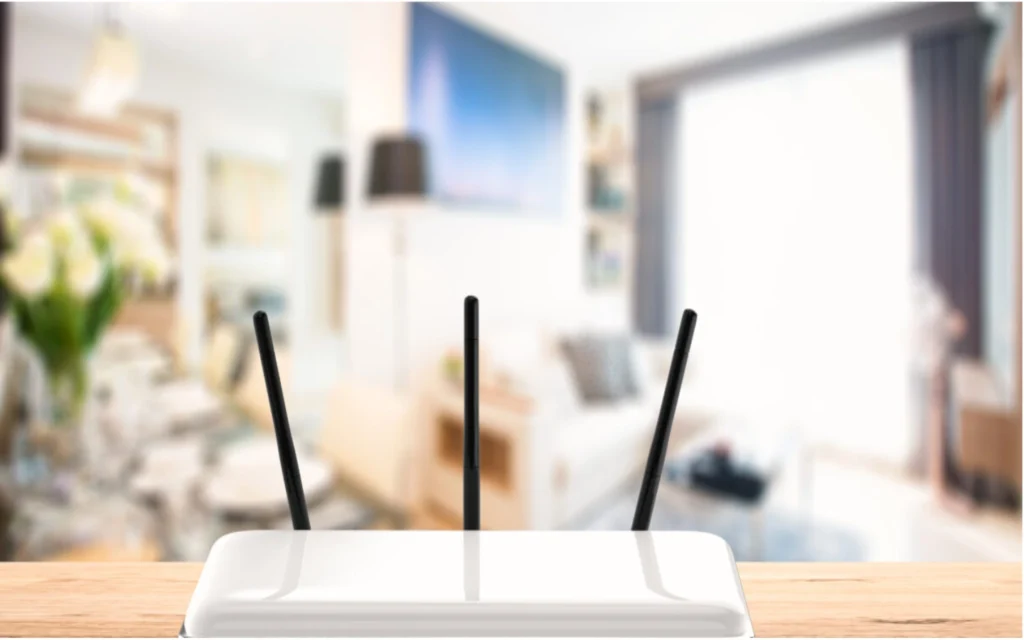
iv. It should not be placed close to the microwaves, cordless phones and baby monitors.
v. Ensure that it is ventilated – disconnections are caused by overheating.
Common Mistake
Never place your router inside a cabinet or inside a closet! The enclosure blocks signals and traps heat. Once, I repaired the WiFi of a friend who had considered it to be broken beyond repair, just by replacing the router, which was in a closed cabinet, with the top of a bookshelf. Problem solved instantly.
Fix 7: Update Your Router Firmware.
The router companies are constantly coming out with new firmwares that resolve the bugs and make them more stable. A router with old firmware with bugs is the mother of all disconnections.
To update your firmware:
- log in your router system.
- Search: Firmware Update, System Update, or Router Update.
- In case there is a new update, download and install it.
- Do not interrupt the update operation – allow it to finish.
- Reboot your router when the update is done.
Spectrum WiFi Keeps Disconnecting? ISP-Specific Solutions
There are certain issues and solutions to consider in case you are a Spectrum customer and have a problem with Wifi keeps disconnecting. The equipment and network structure at Spectrum may generate special problems.
Spectrum Router Issues
Routers sold by Spectrum (particularly the Sagecom and Technicolor models) are infamous about stability problems. A Spectrum router and frequent disconnection, here are Spectrum-specific solutions:
Features of Advanced WiFi at Disable Spectrum.
The Spectrum router has the feature of Advanced Security and band steering which in most cases do not help and instead create more issues. Login to your Spectrum router and go to WiFi settings and disable:
i. Band Steering (forces devices between 2.4GHz and 5GHz, causing disconnections)
ii. High Security (can disrupt normal traffic)
iii. WiFi Optimization (sets everything so it gets worse)
Request a Replacement of Router
After you have done all that and your Spectrum router is still disconnecting, call Spectrum support and demand a new one. Recent models of their router (such as the SAX1V1R) are much more stable than earlier models. You could also use your own router – although it has to be compatible with the Spectrum network.
Check for Area Outages
At times it is not your equipment that is the problem. Intermittent disconnections can be caused by spectrum outages and maintenance in your area. The outage map of Check Spectrum or call their support line to determine whether there are any known problems in your area before spending hours in troubleshooting your own setup.
Specific WiFi Disconnection Solutions.
The reason of WiFi hiccups can be different between different devices. The following are the most prevalent device specific problems and solutions.
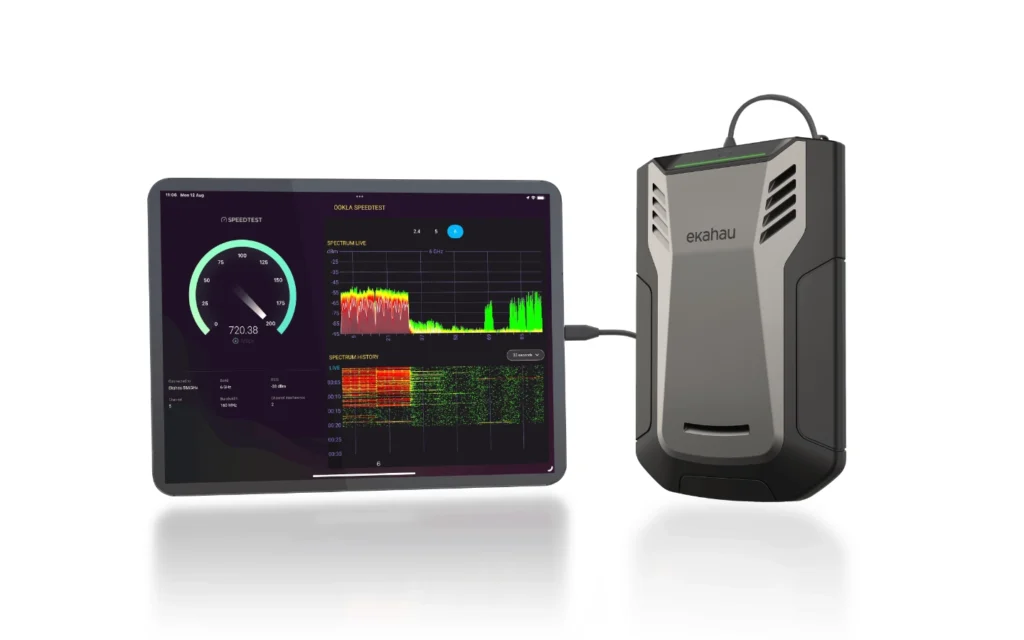
On Laptops WiFi Keeps Disconnecting.
WiFi problems are especially likely to occur with laptops due to aggressive power management. In addition to the power management fix discussed above, attempt the following solutions that are specific to laptops:
i. Turn off USB selective suspend: Select the Power options > Change plan settings > Change advanced power settings > USB settings USB selective suspend setting Set it to Disabled.
ii. Upgrade BIOS: Old BIOS may be the reason behind the unstable WiFi – use website of your laptop manufacturers to update.
iii. Test overheating: Laptops that overheat have unreliable WiFi – clean the vents and one should use a cooling pad.
On phone Wifi keeps disconnecting.
The problem of Smartphones Wifi keeps disconnecting is so widespread, particularly iPhones and Android devices that have aggressive battery optimization.
For iPhone:
- Open Settings > WiFi > Tap the i near your network.
- Disable the option of Private WiFi Address – this option may lead to disconnection.
- Go to Settings > General > Background App Refresh >Ensure it is turned on.
- Turn off and restart network settings in case of issues: Settings > General > Transfer or Reset iPhone > Reset > Reset Network Settings.
For Android:
- In Settings, tap Connections, tap WiFi, tap the gear next to your network.
- In the Keep WiFi on during sleep, change to always.
- Turn off battery optimization of WiFi: Settings > Battery > Battery Optimization > Find WiFi-related apps > Set to Don’t optimize.
My Personal experience with Wifi keeps disconnecting.
I would like to describe my own experience that helps to realize how annoying WiFi problems are – and how good it is to solve them at last.
Two years later, I got a new apartment and established my home office. Everything was good except one annoying issue, my WiFi would lose connection every 8-10 minutes, as clockwork. Whatever I was doing, whether it was video calls, browsing, streaming, the connection would go dead, then come back some 30 seconds later.
I did all the things I could find on the internet. I changed my router, purchased a WiFi extender, switched channels, updated drivers – nothing. I had my ISP visit my site on two occasions and they claimed that everything on their side was okay.
This was achieved when I began recording the actual disconnection times. I have observed that they were nearly exactly regular – every 600 seconds. The fact that it was regular indicated a timer problem, and not dead air or equipment malfunction.
I was able to find it after searching my router in the advanced settings: the default DHCP lease time was 10 minutes. My devices needed to change their IP addresses after every 10 minutes, which led to the temporary disconnections.
I changed the lease time to 24 hours, and just like that, the problem was completely solved. Two years of the aggravation solved by the shift of one figure. That is why I am now so enthusiastic about assisting people to troubleshoot their WiFi problems – in some cases, the answer is easier than it may seem, but you must know where to find it.
Errors to avoid when troubleshooting WiFi keeps disconnecting.
I have assisted dozens of individuals in fixing their WiFi problems, and I have noticed the same mistakes several times. The largest to avoid are the following:
Mistake 1: Purchase of New Equipment without troubleshooting.
I understand – when your Wifi keeps disconnecting it seems to be a natural step to go and buy a new router. In my case, however, less than one out of five WiFi disconnection problems will really need new hardware. The majority can be corrected by changing the configuration. The steps outlined in this guide can help you try the troubleshooting steps before you invest money in new equipment.
Mistake 2: Ignoring the Pattern
Pay attention to WHEN your WiFi disconnects. Is it random? Every few minutes? During some activities only? The trend is one of the indications that will lead you to the source of the problem. Interference or hardware problems are indicated by random disconnections. Periodic and scheduled disconnection implies configuration issues. The activity-related disconnections imply bandwidth/QoS problems.
Mistake 3: Failure to check all the devices.
When only one device is not connecting, it is that device that is having a problem and not your network. When everything is being disconnected it is probably your router or a problem with the internet. This is one of the easiest tests that you can use to save you hours of troubleshooting the wrong thing.
Mistake 4: Ignoring Heating Problems
Routers produce heat and when they become very hot they are unstable. Ensure that your router has much open space in the vicinity. And in case it is hot to touch that is what might be your problem. I have witnessed routers that can perform well during winter but when the season changes to summer, the routers fail to connect at all since they overheat.
Professional WiFi Advice
These are some of the higher techniques that I have learned during the years of network troubleshooting:
Tip 1: WiFi Analyzer App.
It is possible to see what channels in your area are overloaded by WiFi analyzer apps (such as WiFi Analyzer on Android or WiFi Explorer on Mac). This fact is precious in making the most appropriate channel selection towards your network. Do not make a guess, use data.
Tip 2: Separate Your 2.4GHz and 5GHz Networks
Most of the routers in the market today have the capability of integrating 2.4GHz with 5GHz in a single network name, where devices are allowed to select which band to use. The problem is, devices often make poor choices and switch bands at the worst times, causing disconnections. Name your networks differently (such as HomeWiFi_2.4 and HomeWiFi_5) so that you can select the best band manually to each device.
Tip 3: Important Devices that need to have Static IP Addresses
In the cases when stable connections are absolutely required (such as your work computer or smart home hub), you should set a fixed IP address. This will nullify the DHCP renewal process, which will eliminate one of the possible reasons of any disconnection.
Tip 4: Enable QoS for Video Calls
When using WiFi and the connection is not good when making video calls, but the rest works well, you should turn on the Quality of Service (QoS) on your router and give preference to video conferencing applications. This is so that your calls will receive more bandwidth priority and have fewer chances of being dropped in case the network becomes congested.
Frequently Asked Questions
This trend tends to be an indication of configuration problem as opposed to hardware failure. The most widespread ones are: DHCP lease time is extremely small, power management options which put your WiFi entity to sleep, or bugs in router firmware. Fixes available in the Quick fixes section above, in particular updating drivers and changing DHCP lease time can be tried.
When your network outages occur on a specific schedule (say after every 5-10 minutes), you can be quite sure that the DHCP lease time in your router is set too small. At that point, once the lease has expired, your device will need to demand a new IP address, which will result in a short-lived disconnection. Login into your router and change the lease time to DHCP to a minimum of 24 hours.
The design of the router which has the feature of Advanced Security or Band steering tends to cause spectrum WiFi disconnection problems. Enter your router Spectrum, and turn these things off. In case of issues, they should ask Spectrum to replace their router – the newer models are much more successful.
Yes, absolutely. Routers used by consumers can support 15-20 devices that are connected to it, after which they become unstable. In the case of a large number of smart home devices, phones, tablets, and computers connected, the router can be overloaded. Taking into consideration the replacement of a router with higher capacity or installing a second access point.
Video calls consume a lot of bandwidth and are prone to network congestion. When your WiFi only drops on calls, then you probably have a bandwidth or QoS problem. Trial to enable QoS on your router and give video conferencing apps precedence. Also verify whether other devices are consuming bandwidth when you are making calls.
Symptoms of a poorly-functioning router are: requiring frequent restarts, overheating, WiFi signal strength declining with time, ethernet ports becoming inactive, and disconnections that increase in frequency. When your router is older than 5 years and exhibiting these symptoms, it likely needs replacement.
2.4GHz is longer-range but more susceptible to interference. 5GHz is more congestion-free and faster but with a shorter range. To be stable, use 5GHz when you are near your router and 2.4GHz when you are further away. In a situation of choice, 5GHz is usually more reliable where there are numerous WiFi networks.
Although uncommon, malware may lead to instability in a network. There are viruses which overload your network with traffic to the point of disconnection. Scan your system using your antivirus software. When you have the malware suspicions, also take a look at your router connections list and check if there are any unknown devices connected to your network.
Read More: WiFi Connected No Internet on Windows 11
Concluding: Restoring your WiFi When it Works.
The problem of Wifi keeps disconnecting can be very frustrating, yet it can be fixed nearly always. The trick is to go about trouble shooting in a methodical way and not just whistle-blowing. Start with the quick fixes, pay attention to patterns, and work through the advanced solutions if needed.
Remember, the most common causes of Wifi keeps disconnecting are:
i. Drivers with any outdated version (easy fix – simply update drivers)
ii. Poor location of the router (Take your router to a better location) or router overheating.
iii. WiFi congestion on a channel (switch to a less congested channel)
iv. Lease time in router settings is too small (change lease time to be larger)
v. Power management options (turn them off in your WiFi driver)
In case you have gone through this guide and your WiFi continues to break down, it might be time to call your ISP or even buy another router. However, in my experience, one of the above fixes will resolve the overwhelming majority of WiFi disconnection issues.
Good luck, thank you for reading and I have a lovely day.