

Quick Answer |
The “WiFi connected but no internet” usually means your device joined your router successfully, but the router can’t reach your ISP—or something on your device is blocking the connection.The quickest solution: power cycle of the router (unplug 90seconds, first the modem), and then test whether other devices can connect to it, the internet. In case they do, the issue is your device. If they don’t, it’syour router or your ISP. Key points: 1. Connected, no internet is similar, but requires the fixes to be different. 2. There is another suspect that you will never find cited in most guides about Android phones, and that is Private DNS settings. 3. Since you have reset the router, you will have to re-enter the DHCP or the static IP settings. |
The Reason Why “Connected” is not online.
This is what made me confused for a year: the device may be on a good connection with your router, but the internet is not working. It’s supposed to connect WiFi and the internet; now it has a problem that we should solve. You will get to know how you can fix the errors.
Let’s look at it this way. One of these four things has failed: when you connect to WiFi, there is no internet error.
1. Find out whether the connection between the router and ISP is working.
2. Wrong DNS, IP, or an expired lease.
3. VPN problems, a firewall, and a portal loop software conflict on your device.
4. You have a malfunction of some hardware (like a modem, cable, or corrupt firmware of a router).
Now, you should get it into your mind that this fixes the list below; we shall follow it in order, indicating the hierarchy, and find out the causes and also solve the problem.
The “Two-Device Test” — Do This First |
In order to detect the source of the problem, you should check another device on your Wi-Fi network. Should the second device be unable to connect to the internet? Your router or ISP has a problem. Go to Fix 1, and if the second device also works fine, the problem is your own device. Now go to Fix 6. |
Router & ISP Problems: Fixes 1–5
Fix 1: You are required to do the power cycle of both the router and the modem in the correct orientation.
Everyone says “restart your router.” Almost nobody explains how to do it correctly — and doing it wrong means you’ll be back here in an hour.
The correct sequence:
- Unplug your modem from power first
- Unplug your router from power
- Wait 90 seconds — not 10, not 30. A lot of modems will retain a DHCP lease in memory for a maximum of 60 seconds. You need to clear it fully.
- Plug in the modem first. Wait (30-60 seconds) until it is hard on sync.
- Then plug in the router. Wait another 60 seconds
- Test your internet
The 90-second rule was shown to me in the most unpleasant manner. I was constantly rebooting the two devices at the same time, and the modem would constantly pick up the old stale DHCP lease. It was shed by parting with them and introducing the weight.
My success rate: The success rate of all non-internet calls was about 55 percent.
Fix 2: Check Your Modem’s Sync Light
Your modem does have a display that informs you whether or not it is truly connected to the signal of your ISP. Search for a cable modem DS/US or DSL modem ADSL/Sync or cellular equipment signal/LTE.
In the event that this light is blinking, red, or off, then no amount of fixing at the device side will help.
Light Status | What It Means |
Solid green | Modem is synchronized degrees problem elsewhere |
Slowly blinking | Trying to get sync – wait 2 mins |
Blinking quickly | Sync failed — probably a line problem or ISP. |
Red or amber | Error condition – call your ISP. |
Off | Check cable connections first and then no signal |
When to call your ISP: In case your sync light fails to achieve a steady state even after two complete power cycles, call them. It can be that you have a line problem, a faulty modem or something to do with provisioning that you cannot fix yourself.
Fix 3: Log in Your Router and See whether it is connected to WAN.
This procedure demonstrates more than nearly all available diagnostic, and close to 5 percent of users even consider doing it.
How to access your router:
- Using a WiFi-enabled device, launch a self-governing decent program and enter 192.168.1.1 or 192.168.0.1.
- Log in—the default user is normally admin/admin, or refer to the sticker at the top of your router.
- Click on WAN Status, Internet Status, or Connection Status.
Interpret your WAN IP address:
What You See | What It Means |
198.x.x.x or 24.x.x.x | Router has internet – device problem. |
0.0.0.0 or blank | Router not receiving address dispatched by ISP. |
169.254.x.x | APIPA address – the router is unable to access the DHCP server. |
Disconnected | Physical line problem or ISP failure. |
When WAN has some real public IP but there is no ability to browse, then the problem is with DNS—proceed to Fix 4.
Fix 4: Change Your DNS Servers
The phone book of the internet. With DNS servers of your ISP offline or filtered, all websites are unreachable despite an excellent connection.
Quick test: When typing 1.1.1.1 into your internet browser and it works – but websites don’t boot up – it is a DNS issue.
On your router (solves up all machines simultaneously):
- Log into your router admin page
- Locate DNS settings (typically under WAN Settings or Advanced)
- Set Primary DNS: 1.1.1.1, Secondary DNS: 8.8.8.8
- Save and reboot the router
On your router (solves up all machines simultaneously):
On Windows:
The settings are accessed by clicking Network and Internet, then WiFi, and then Hardware properties. → Handbook Assignment: DNS Server. IPv4 Primary DNS: 1.1.1.1 IPv4 Secondary DNS: 8.8.8.8 |
On Android:
Settings → Network & Internet → WiFi → Press network → Modify → Advanced → IP Settings → Static DNS 1: 1.1.1.1 DNS 2: 8.8.8.8 |
On iPhone/iPad:
Settings → WiFi → Tap 1 next to your network → Configure DNS → Manual → Add 1.1.1.1 |

Fix 5: ISP Side Outages and Account Problems Check.
This may not seem like much of a given but it is skipped every now and then, and it costs people hours.
- Visit the outage reports in real-time on your mobile data on downdetector.com/[your-isp-name]
- Look at the app of your ISP—they all display account status and local outages.
- Confirm your bill is current. When any bill becomes unpaid, it will appear as connecting, no internet. The modem connects, but the internet service provider blocks all traffic at their gateway.
I have clients who I have spent two hours troubleshooting before they confessed that they had not paid in three months. The modem was simply in sync, the ISP was simply blocking all their traffic without notifying them.
Problems with devices: Fixes 6 – 10
Fix 6: Disconnect and Reconnect to the WiFi Network.
It is the only one that is effective on the device side. Upon connecting to wifi, your device logs a profile containing the last IP address and stored DNS entries as well as authentication credentials. When all that grows stale, you have a phantom connection. Any network may be erased by forgetting it.
Device | Steps to Forget Network |
Android | Settings → Network and Internet → WiFi → Long press network → Forget |
iPhone/iPad | Settings → WiFi → Tap (i) → Forget This Network |
Windows | Settings → Network & Internet → WiFi → Manage Known Networks → Forget |
macOS | System Settings → WiFi → Details → Forget This Network |
Wait 15 seconds before testing. Time is required by your computer to lease a new IP.
Fix 7: Flush Your DNS Cache and Reboot Your IP
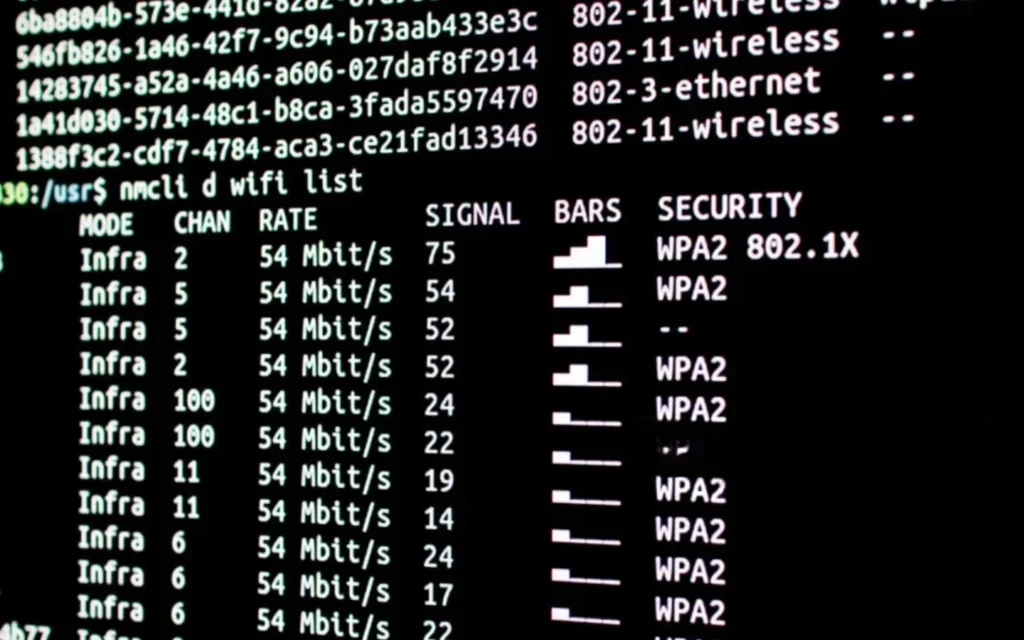
After having been reconnected, they may still have stale, hanging DNS records on your device or even an out-of-date IP lease. These commands fix that.
On Windows (open Command Prompt (Administrator) on Windows):
ipconfig /release ipconfig /flushdns ipconfig /renew |
Run them in that exact order: /release drops your IP lease, /flushdns clears cached lookups, /renew requests a fresh IP.
On macOS (Terminal):
sudo dscacheutil -flushcache sudo killall -HUP mDNSResponder |
On Android / iPhone:
Switch on Airplane Mode Toggle (wait 15 seconds) and change it off. This causes complete re-registration of a network.
Fix 8: Turn off Your VPN (Even If You Think It’s Off)
Most VPN applications have a kill switch that stops all the internet traffic in case the VPN fails. The outcome appears to be precisely the same as WiFi connected no internet. The application can appear dead but in the background, it will be blocking traffic.
- completely remove or use the VPN application — don’t just toggle it off
- Android: Settings → Network & Internet → VPN and check for active profiles
- Windows: Settings → Network & Internet → VPN → remove active connections
- Test internet without the VPN running at all
- If it works, reinstall the VPN and review its kill switch settings
Fix 9: Check Your Android Private DNS Settings (The Fix Most Guides Miss) |
|---|
Android has a Private DNS option (DNS-over-TLS) that, when configured to a custom name that is either unreachable or misspelled, will block all DNS queries but display a WiFi connection. This is the reason a massive volume of connected, no internet messages on current Android phones. How to fix: 1. Open Settings → Network & Internet → Advanced → Private DNS 2. In case it displays a custom hostname (such as dns.adguard.com), change it to Automatic 3. Toggle WiFi off and on after changing the setting |
Fix 10: Reset Your Network Settings
This is the nuclear option for device-side fixes—wipe all the network drives and reboot. All WiFi passwords will later have to be entered again.
Device | How to Reset Network Settings |
|---|---|
Device | How to Reset Network Settings |
Android | Settings → General Management → Reset → Reset Network Settings |
iPhone/iPad | Settings → General → Transfer or Reset → Reset → Reset Network Settings |
Windows | Settings → Network & Internet → Advanced Network Settings → Network Reset |
What gets cleared: All WiFi networks and Bluetooth connections, VPN settings, and network adapters. Any private DNS or proxy settings have to be reconfigured after resetting.
WiFi Connected No Internet After a Reset: Fixes 11–12
Fix 11: Reset Static IP or DHCP.
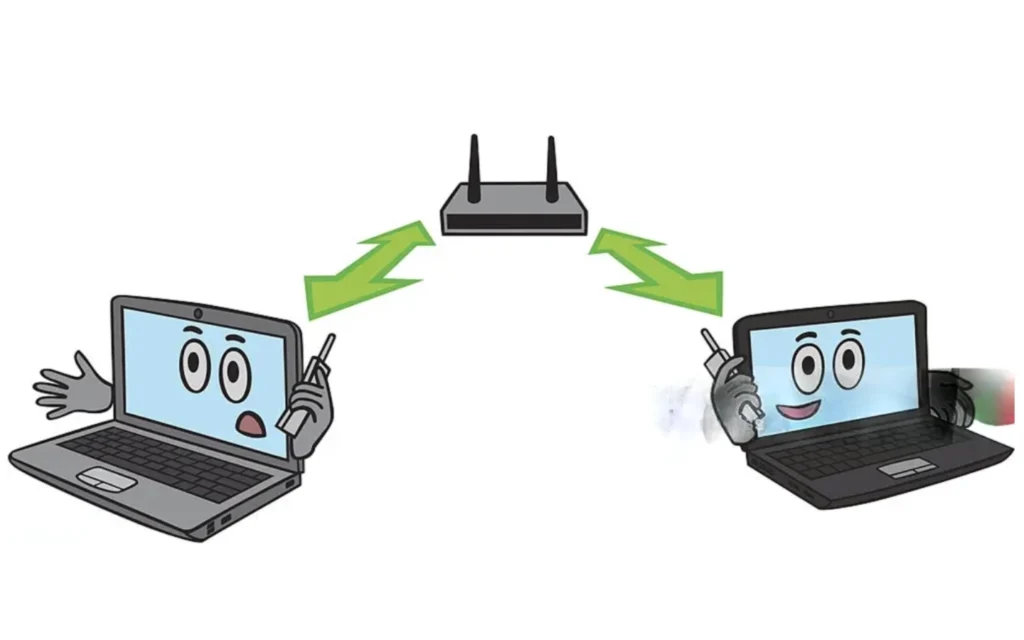
Once a router is reset, the IP set up system of assigning IP defaults to the incorrect setting of your ISP.
Routing / log into router and WAN/Internet Settings. Your ISP uses one of:
- DHCP — the majority of home ISPs. Router receives an auto IP. Just save and reboot.
- PPPoE — this is used by DSL; it takes a username and password provided by your ISP. It will have to be re-entered following a reset.
- Static IP — Certain business accounts; this is where you have to re-enter the specific IP, subnet, and gateway as well as the DNS that your ISP provided.
On PPPoE in case of router reset, you will not be connected until you enter the credentials once more. Ask your ISP in case you do not have them
Fix 12: Router Software upgrade or roll back.
Firmware updates of router are expected to make it better. Instead they break things sometime. I have myself witnessed a firmware update that brought precisely this symptom to a considerable percentage of the units that automatically updated.
If this happened after an automatic update:
1. Enter into router administration page.
2. Find the Firmware section
3. Search an option of rollback or previous firmware.
4. In the event of no rollback, visit the support page of the manufacturer and find a manual firmware file.
If your firmware is outdated:
This can be done through old firmware through the use of expired certificates. Background check is done through HTTPS by manufacturers, and when root certificates are expired and the firmware has become too old to be aware of expired certs, the background check silently fails. Enter and update on the updates available.
Advanced Fixes: 13–15
Fix 13: Leave the Captive Portal Loop Fixed.
In the case of hotel WiFi, airport WiFi or the coffee shop networks. Captive portals rely on the fact that HTTP requests are redirected to a secure starting point. When your computer blocks that redirection, then you are left in a bogus connected state.
How to force the captive portal to appear:
1. Go to neverssl.com, its purpose, which is to activate captive portals, is not encrypted, and deliberate.
2. Disconnect and reconnect manually onto the network in case the page does not load.
3. In Android, there should be a notification at the top (sign in to network) when you tap it rather than dropping it.
Fix 14: Check for IP Address Conflicts
Getting identical IP address causes one of the devices to lose the internet – more often than not, the last entering second.
Symptoms: Internet becomes operational and ceases. Or works not on one of the devices.
Diagnose on Windows:
Open Command Prompt and type ipconfig /all. In case the IPv4 address of your computer ends in 169.254.x.x, it did not receive an appropriate IP address by the router.
How to fix:
- Trigger your release as well as renewal of your IP (see Fix 7 commands)
- SET a fixed IP address that falls outside the range of the DHCP of your router, i.e. 192.168.1.100-200, make it 192.168.1.50.
- Check your router’s connected devices list for duplicate IPs
Fix 15: Make sure you have the correct drivers installed in your netw (Windows Only)
Windows update sometimes other manufacturers caused updated WiFi driver with a generic version not supporting all functions required to make a proper internet handshake.
To roll back or update:
1. Right-click Start → Device Manager → Expand Network Adapters
2. Right-click your WiFi adapter → Properties → Driver tab
3. In case the date of the driver is recent, equal to a Windows Update, click Roll Back Driver.
4. Or go to the manufacturer of your laptop with their site, get the official WiFi driver, install it by hand.
5. Restart your PC and test
My Personal Experience
One of the small restaurant owners called me in a panicy state of affairs, because their payment terminals had stopped taking cards. It all displayed WiFi connected. I had the staple stuff done remotely: power cycle, forget/rejoin, DNS flush. Nothing worked. Two hours in, I drove over.
Had the ISP that assigned them DHCP changed their assignment to a fixed address three months ago. It lost its defaulted state to DHCP mode when a thunderstorm shut down power and the router recognized it as rebooting. ISP was giving the router a new temporary IP but this was blocked by the firewall of the ISP since it was not the required static dox.
This fix required 4 minutes when I figured out what I was dealing with: log into the router, change the type of connection to WAN into Static IP, re-enter the four numbers the ISP had initially supplied, reboot. Done.
The Key Lesson |
|---|
Whenever you are told that it just ceased to work, always inquire what has been changed. An update. A storm. A bill. A new device. Something was never the same – and it is almost always the quickest way to the workaround |
Common Mistakes That Make This Worse |
|---|
1. Restarting router and modem at the same time. Distribution of sequence: modem, then wait then router. 2. Rapid WiFi toggling. One toggle, wait 15 seconds. Switching between applications too fast may corrupt Android adaptive state with older devices. 3. Changing DNS on the device instead of the router. Change it on the router and it fixes all devices at once. 4. Skipping the two-device test. It is no use wasting 45 minutes of your time to reset your phone when your ISP is unavailable. 5. Forgetting to disable the VPN first. A VPN kill switch will give all indications of being connected to the internet, but is not. One of the first steps is always to disable VPN software. 6. Factory resetting the router without credentials. In case you are using a PPPoE-based ISP, you require your username and password to be in place before the reset. Confirm you have them first. |
Tricks of the Trade that Fortunate Few Guides Know. |
|---|
1. Set a monthly router reboot reminder. Routers are mini computers that are kept 24/7. Memory leaks and dead connection tables develop over the years and lead to periodic problems. 2. Take a screenshot of router settings prior to altering the settings. Hours of reworking are saved because of three minutes with your phone camera. 3. Use ping to isolate DNS vs. routing problems. “ping 1.1.1.1” works but “ping google.com” fails = DNS problem. Both fail = routing/connectivity issue. 4. Write down your ISP’s number and keep it offline. If the internet is down, you can’t Google their support number. Put it in your phone contacts. 5. Enable scheduled reboots on your router. Asus, TP-Link, and Netgear routers with modern firmware support this. Set it for 3 AM Sunday. |
Frequently Asked Questions
The Android-specific cause is the most widespread, and is the Private DNS. Access Settings – Network and Internet – Advanced – Private DNS and ensure that it is set to Automatic. Also take note of VPN applications on the background.
When other machines prove to work, this will narrow down the problem to yours. Most can possibly be: corrupt network profile, VPN killswitch on or DNS cache that is out of date. Fix (forget/rejoin WiFi) 6 Run Fix 7 (flush DNS) 8 (disable VPN) More in that order.
Log in into router (usually it is 192.168.1.1) and verify WAN settings. In case of your ISP is based on PPPoE, re-type in your ISP username and password. To fix the issue, DHCP users might be required to save and restructure
Something nearly never remained the same. Check – (1) There is an ISP outage in downdetector.com using mobile data; (2) Overnight auto-update of router firmware; (3) IP lease may have expired. Most of the sudden-onset cases are resolved by a 90 seconds power cycle (modem first).
Phones lack additional software layers that laptops have firewall applications, VPN clients, and Windows Defender network protection can silently block the web as long as WiFi is active. Attempt to deactivate third party security programs. -Fix 15 is also applicable to driver problems.
Following steps: (1) Turn on the Airplane Mode in 15 seconds. (2) Forget and rejoin WiFi. (3) Fully disable VPN apps. Android only: verification of Private DNS settings. (5) Change DNS to 1.1.1.1. All these should work, only a Network Settings Reset should be considered in case they do not work.
Almost, but not quite. No internet access (Windows) is normally an indication that the device received an IP but was unable to proceed further past the router. The absence of an internet connection (Android) is frequently an indication of an unsuccessful DNS resolution. Both would require similar solutions, but the Android Private DNS fix 9 is applicable to the phrasing of the Android.
Conclusion: The Time-Saving Hierarchy
Three things, including a proper router power cycle, the problem affecting all devices, and flushing DNS solve most cases (80%). The other 20% will need subdivision of the ISP connection type, DNS configuration, VPN interference, or device-specific settings.
Follow this order:
i. Test (two devices) to know whether it is router-side or device-side.
ii. Power cycle – modem then 90 seconds then router.
iii. Test the sync light of the modem and the outage of your ISP.
iv. In case the device-only forget/rejoinWiFi, then dnsmasher.
v. Should Android: check Private DNS settings.
vi. In case of a reset: re-enter settings of WAN/ISP on your router
In the case of chronic issues, call your ISP and
explain precisely what you are seeing on the WAN status page on the router. The
one most useful piece of information that the router has is whether it has a
real public IP address or not, to the diagnostic team of the router.
The contents of this post are purely educational. Although these fixes have been effective to me and many others, networking problems are very diverse. You may not like working with the command line, or modifying configuration of your system, in which case you may wish to seek professional assistance. Before making significant changes in the system, always make sure to save key information.